Pages

Showing posts with label Microsoft. Show all posts

PASSWORD REPLICATION IN RODC

In RODC environment one of the great feature is the password replication. in RODC environment we can determine which passwords need to be cache in RODC and which accounts still need to be authenticate via writable domain controller. As example domain administrator accounts do not need to be cached on RODC. its always safe if it can be authaticate via routable DC for security purposes. so if a domain administrator login from a RODC enviornment, we can set system to forward the authtication request or service ticket to the writable domain controller.

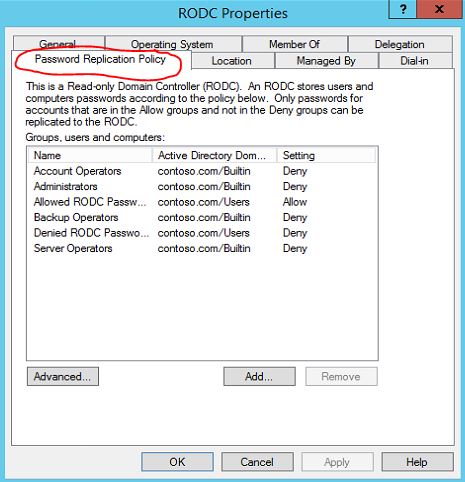
Microsoft made this easy by introducing password replication policy (PRP) to RODC environment. by default system create domain-wide password replication policy two domain local security groups.
Allowed RODC Password Replication Group : Members of this group will allow to cache passwords in RODC. by default this group do not have any members.
Denied RODC Password Replication Group: Members of this group are deny to cache passwords in RODC. Some of the groups which are security critical are member of this group by default such as Administrators, Server Operators, Backup Operators, Account  Operators.
One of the biggest mistakes administrator do is only allow/deny user accounts. But computers it self also uses authatication and service tickets requests. so make sure you add computer accounts also in to these lists.
How to configure RODC password replication policy(PRP) ?
1) Login to a writable domain controller with domain administrator account
2) Open "Active Directory Users and Computers" snap in by Server Manager > Tools > Active Directory Users and Computers
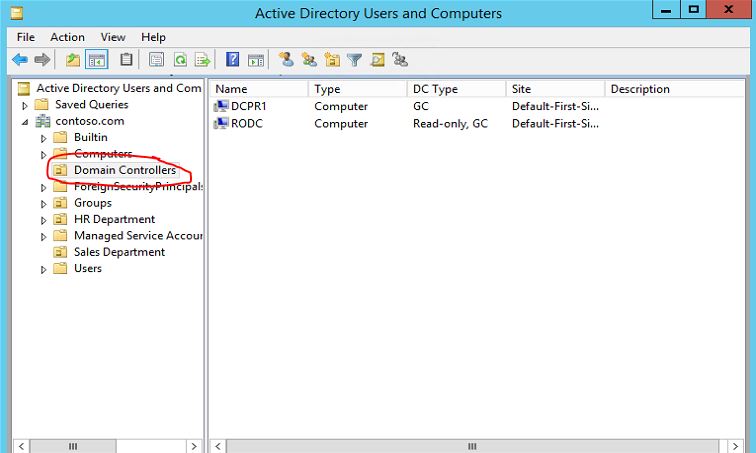
3) Go to "Domain Controllers" OU
prp1
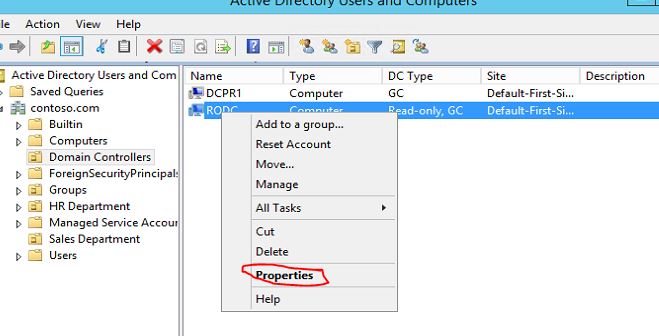
4) Click to select the RODC you need to configure PRP. Then right click and click on properties.
prp2
5) In the properties window click on "Password Replication Policy" tab
How to Configure VPN? Part 3

This is the part 3 of the series of articles which explains complete setup of VPN in windows serverenvironment.

Configure Logs
To maintain the security and the monitor the issues involve with the remote access it’s important to configure proper logs. NPS keeps separate logs for this process. In below I will demonstrate how to configure these logs.
1.    Open the network policy server mmc.
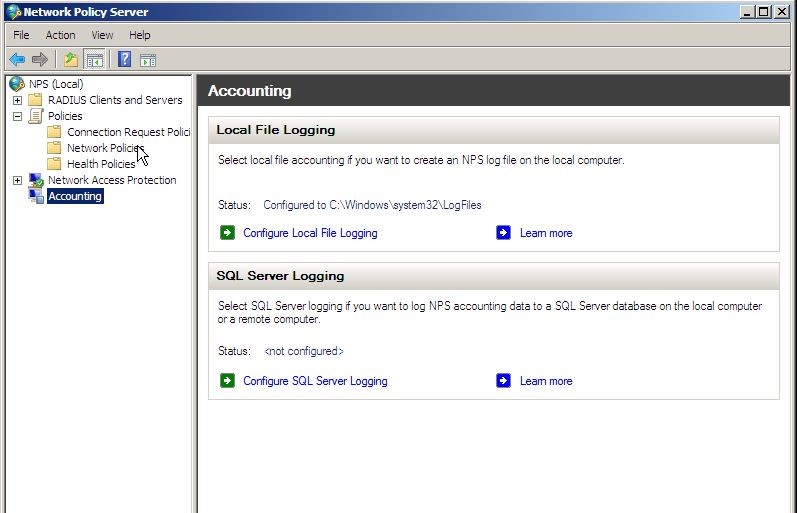
2.    In the console click accounting.
c1
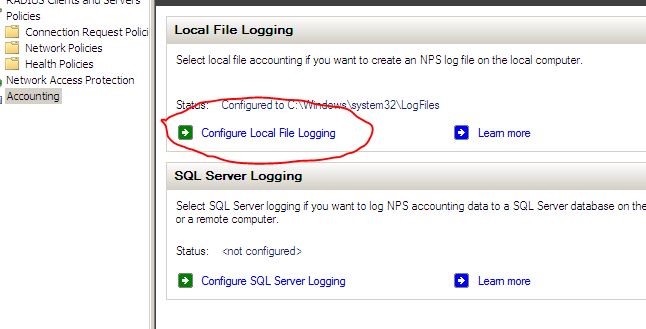
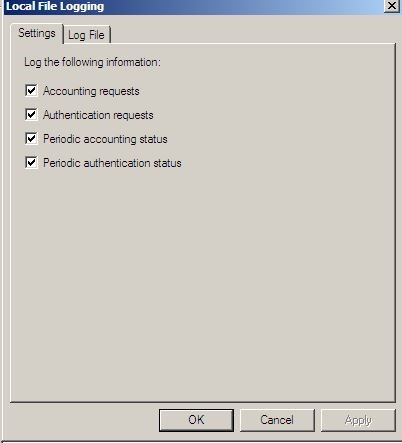
3.    In the detail panel click configure local file logging. Then local file logging box will open.
c2
c3
4.    On the log file tab, it is possible to define the directory the log files should store. Also by selecting “database-compatibility” the files will be save on IAS format which allow to open it from database level.

GUIDE TO MIGRATE FSMO ROLES FROM WINDOWS 2003 SERVER TO WINDOWS 2012 R2 SERVER


Even its been over decade after windows server 2003 release , It’s no wonder that still organizations using windows server 2003 / windows server 2003 R2 as their domain controllers. Microsoft has announced that windows server 2003 / windows server 2003 R2 supports ends on 2015, July 14th (http://support2.microsoft.com/lifecycle/search/default.aspx?sort=PN&alpha=Microsoft+Windows+Server+2003&Filter=FilterNO). So the day has come to plan out for the upgrades if you still running those versions in infrastructure.


This guide will explain how we can transfer DC FSMO roles from windows server 2003 to windows server 2012 R2 which is latest. In Windows DC environment FSMO roles holds all the information about DC and its necessary to have all this 5 roles working correctly to maintain proper DC environment. The 5 FSMO roles as following,
•    Schema master
•    Domain naming master
•    RID master
•    PDC emulator
•    Infrastructure master
You can find more information about this roles from http://support.microsoft.com/kb/197132
For the demonstration I am using the following setup


Server Name
Operating System
Server Roles
canitpro-dc2k3.canitpro.local
Windows server 2003 SP2 x86
Active Directory FSMO roles, DNS
CANITPRO-DC2K12.canitpro.local
Windows server 2012 R2 x64
Additional Domain Controller, DNS
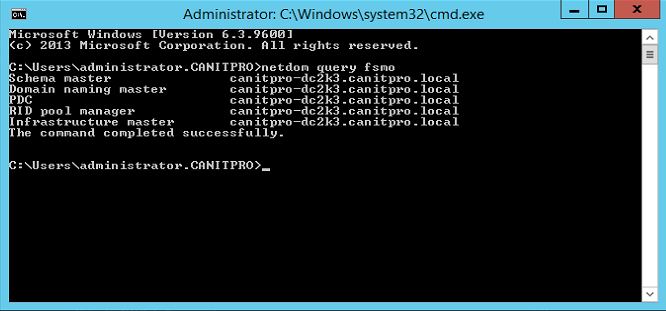
So in here I already added windows 2012 r2 server to domain and make it additional domain controller. Currently it do not hold any FSMO roles. My plan is to migrate all the FSMO roles in to windows 2012 r2 server.
role1
Note : In before if we adding windows 2008 server to windows 2003 environment, first we need to prepare the forest and domain schema by running adprep \forestprep and adprep \domainprep  from windows 2008 source files \ support \ adprep. But in windows 2012 you do not need to worry about it when adding 2012 as additional domain controller. When you run the dcpromo it will automatically update it in windows 2003 remotely.

GUIDE TO MIGRATE ACTIVE DIRECTORY CERTIFICATE SERVICE FROM WINDOWS SERVER 2003 TO WINDOWS SERVER 2012 R2.


Microsoft has already announced that windows server 2003 / windows server 2003 R2 versions support is coming to end in 14th July 2015 (http://support2.microsoft.com/lifecycle/search/default.aspx?sort=PN&alpha=Microsoft+Windows+Server+2003&Filter=FilterNO). It’s no wonder that some organizations still uses windows server 2003 versions in production environment.


If you still not plan for migration from legacy windows server versions, well time has come!!
This guide will explain how we can migrate AD CS from windows server 2003 to windows server 2012 R2.
In this demonstration I am using following setup.
Server Name
Operating System
Server Roles
canitpro-casrv.canitpro.local
Windows Server 2003 R2 Enterprise x86
AD CS ( Enterprise Certificate Authority )
CANITPRO-DC2K12.canitpro.local
Windows Server 2012 R2 x64
-
Backup windows server 2003 certificate authority database and its configuration
•    Log in to Windows 2003 Server as member of local administrator group
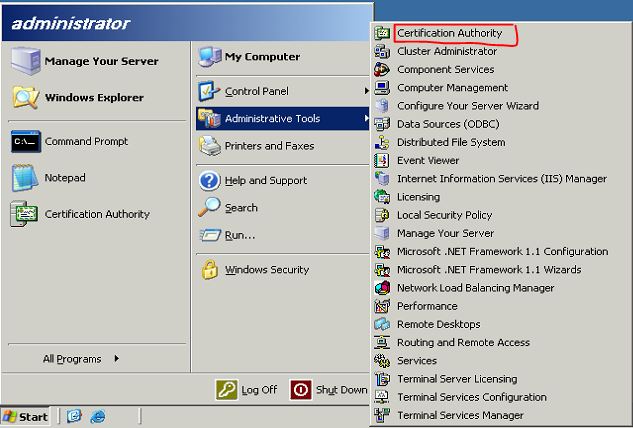
•    Go to Start > Administrative Tools > Certificate Authority
adcs1
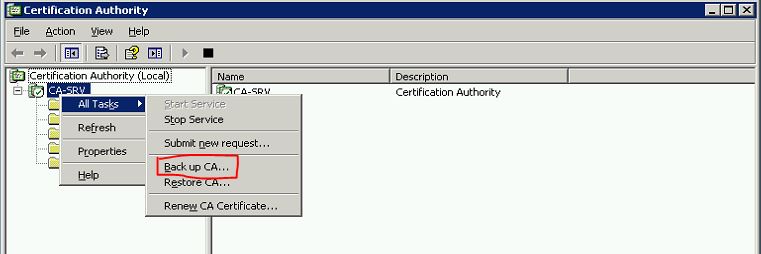
•    Right Click on Server Node > All Tasks > Backup CA
adcs2
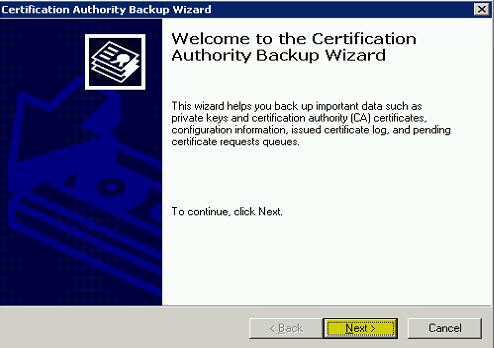
•    Then it will open the “Certification Authority Backup Wizard” and click “Next” to continue
adcs3
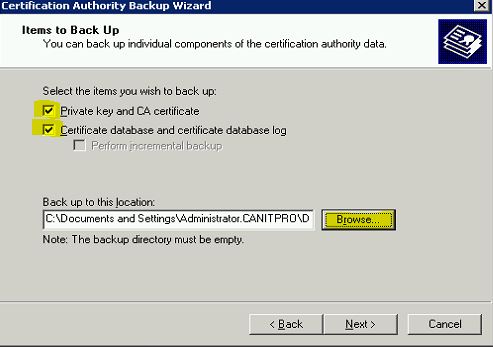
•    In next window click on check boxes to select options as highlighted and click on “Brows” to provide the backup file path location where it will save the backup file. Then click on “Next” to continue

GUIDE TO MIGRATE DHCP FROM WINDOWS SERVER 2003 TO WINDOWS SERVER 2012 R2 USING WINDOWS SERVER MIGRATION TOOLS

Microsoft has already announced that windows server 2003 / windows server 2003 R2 versions support is coming to end in 14th July 2015 

It’s no wonder that still organizations using windows server 2003 / windows server 2003 R2 in their infrastructure with different server roles.
With windows server 2008 R2 Microsoft has introduce new great feature called “Windows Server Migration Tools” which will  allow administrators to migrate server roles, features, configuration settings seamlessly from one system to another(ex- windows server 2003). Windows server 2012 also includes this feature and in this article I will demonstrate how we can use it to migrate DHCProle to windows server 2012 r2.
Please note, To use this method we need to install this feature in both source and destination servers.
For the demonstration I am using following setup

Server Name
Operating System
Server Roles
Networks
dhcp-2k3.canitpro.local
Windows Server 2003 R2 Enterprise x86
DHCP
Network A – 10.10.10.0
Network B – 172.16.25.0
Network C – 192.168.148.0
CANITPRO-DC2K12.canitpro.local
Windows Server 2012 R2 x64
-
-
Before start the migration process it’s important to consider on following.
1)    To migrate the roles you need to log in to source and destination servers as “Domain Administrators”. 
2)    Before start the migration process make sure source and destination servers’ runs with latest updates and service packs. 
3)    If the source server runs with multiple network, multiple NIC make sure the destination server also have same number of NIC so it can be server with same network setup.
dhcp-2k3.canitpro.local server currently setup with 3 additional NIC to represent network A,B and C. those have configured with static ip addresses to match with relevant network it belongs to. The DHCP server host different DHCP scopes for each network.
Before we start the process we need to install the following software in windows server 2003(dhcp-2k3.canitpro.local) if it’s not there already.
Install Windows Server Migration Tools in windows server 2012
1)    Log in to the Windows server 2012 as Domain Administrator
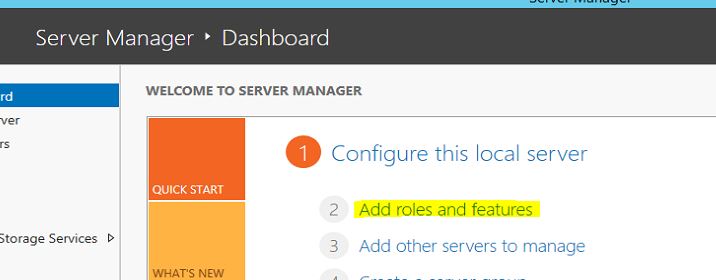
2)    Go to Server Manager > Add Roles and Features
dmig1
3)    It will open the Add roles and features Wizard and click next to start the process
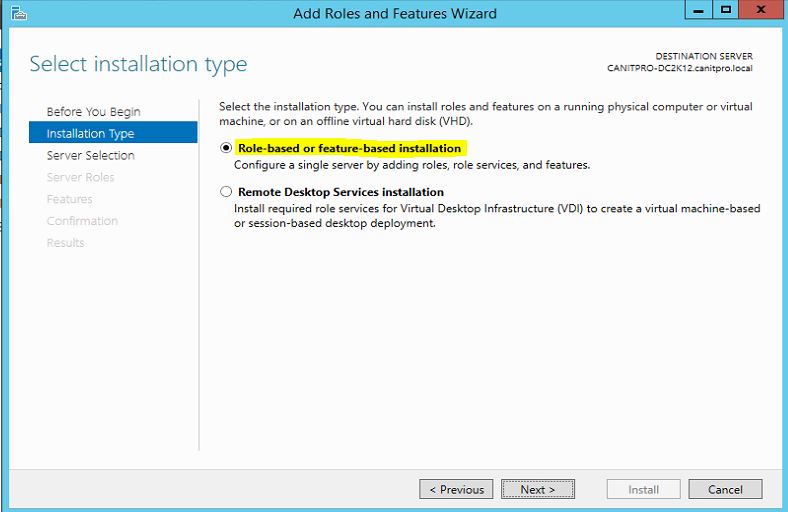
4)    In next window, for the installation type select “Role-based or feature-based installation”  then click next to continue
dmig2
 

RECENT ARTICLES

Recent Articles

BLOG CONTENTS